Imagine being able to play your favorite PlayStation games anywhere in your home or even on the go. With PS Remote Play, this freedom becomes a reality, allowing you to stream gameplay from your console to a variety of devices. This feature not only enhances your gaming experience but also addresses the common issue of limited playtime and space constraints.
As you explore the possibilities of Remote Play, you’ll find that it offers a seamless connection between your console and devices, making gaming more accessible and flexible than ever. Whether you’re a busy professional squeezing in a gaming session, a parent catching a break, or a dedicated gamer wanting to maintain your sessions while traveling, understanding how to set up and use PS Remote Play will elevate your gaming adventures.
In this comprehensive guide, we’ll walk you through the essentials of getting started with PS Remote Play, ensuring you can make the most of this innovative feature. Get ready to break free from traditional gaming limits and connect to your console like never before!
Understanding PS Remote Play: An Overview
With the rise of remote gaming, PS Remote Play has emerged as a game-changer, allowing players to experience their favorite titles from virtually anywhere. Imagine being able to pause your game at home and seamlessly continue your adventure on your phone while waiting for your coffee. This technology arms gamers with the flexibility to connect to their PlayStation 5 or PlayStation 4 consoles while they’re away from the traditional setup. Whether you’re traveling, at work, or even lounging in a different room of your house, the ability to control your console and play its library on various devices enhances your gaming experience like never before.
PS Remote Play operates by streaming the game directly from your console to your device, ensuring that you can enjoy gameplay without being tethered to your living room. This feature supports a variety of platforms, including smartphones, tablets, PCs, and even dedicated handheld devices. With a stable internet connection, you can navigate through menus, switch games, and maintain gameplay continuity, making it particularly appealing for those who lead an active lifestyle or simply prefer gaming outside traditional confines.
Moreover, PS Remote Play harnesses cloud technology, allowing for real-time gaming performance while utilizing your home console’s processing power. This unique setup means you can enjoy high-quality graphics and intricate gameplay without sacrificing performance, which is essential in competitive gaming scenarios. As more gamers explore remote play options, overcoming geographical boundaries becomes less of a hindrance, making the gaming community more interconnected than ever before. Embracing this technology is not just about convenience; it’s about staying connected to your gaming world, no matter where life takes you.
Taking advantage of PS Remote Play opens doors to new possibilities in gaming. Whether you’re balancing work obligations while craving a gaming session or visiting friends who don’t have a console, the versatility that PS Remote Play offers is invaluable. By leveraging this innovative platform, you empower your gaming experience, making every moment a potential gaming moment.
Essential Requirements for Setting Up PS Remote Play
To harness the power of PS Remote Play and enjoy gaming freedom, certain fundamental requirements need to be met. Imagine setting yourself up to game on-the-go, from a cozy café in Europe or a beachside hammock in Bali. The first step to achieving this exhilarating gaming experience is ensuring you have the right equipment and connections in place.
Begin with a compatible console, specifically the PlayStation 4 or PlayStation 5. These consoles serve as the heart of your remote gaming experience, with PS Remote Play designed to leverage their capabilities. Next, you’ll need a stable and fast internet connection. A minimum upload speed of 5 Mbps is recommended for decent quality, but for a seamless experience, aim for speeds of 15 Mbps or higher. If possible, connect your console to your router via an Ethernet cable to reduce latency and enhance stability.
Additionally, you’ll want to choose a device for remote play. This can be a compatible smartphone, tablet, or PC equipped with the PS Remote Play app, available on multiple platforms. Ensure your device is fully updated to avoid compatibility issues. If you’re opting for mobile gaming, invest in a good quality mobile controller to enhance your gameplay, as it replicates the feel of console gaming more closely.
Lastly, don’t forget to configure your PlayStation’s settings! Enable remote play by navigating to the console’s settings menu under Remote Play Connection Settings. Remember to set your console to stay in rest mode for easy access even when you’re away. Properly preparing all these essentials sets the stage for your adventure, allowing you to dive into your favorite games wherever your travels may take you.
Step-by-Step Guide to Configure Your Gaming Setup
Setting up PS Remote Play opens up a world of gaming possibilities wherever you might find yourself. Whether you’re lounging at a beach or sipping coffee in a bustling café, the ability to access your PlayStation games remotely turns any location into your personal gaming hub. To get started on this exciting journey, follow these essential steps to ensure a smooth configuration of your gaming setup.
First, make sure your PlayStation 4 or PlayStation 5 is ready for action. Begin by powering on your console and navigating to the Settings menu. From there, scroll down to Remote Play Connection Settings and enable the option to allow remote play. This crucial step ensures that your console is prepared to accept remote connections. Additionally, adjust the Rest Mode settings to allow your console to remain accessible while not in active use; this can be found under Power Saving Settings. To enable quicker access, ensure that Stay Connected to the Internet and Enable Turning On from Network are both activated.
Next, download the PS Remote Play app on your chosen device-be it a smartphone, tablet, or PC. The app is available on multiple platforms, so you’ll find it in the respective store for your device. After installation, open the app and log in using your PlayStation Network account credentials. The application will guide you through the connection process, including detecting your console on the same network.
When attempting to connect remotely, ensure that both your console and the device running PS Remote Play are connected to a robust internet connection. For optimal performance, a wired connection to your console is ideal, but if you’re using Wi-Fi, select a network that boasts strong speeds. Aim for a minimum upload speed of 15 Mbps for a seamless gaming experience. Once your devices are set up, you’ll be prompted to select your console and connect, bringing your games to life right at your fingertips.
Lastly, personalize your gaming experience by configuring any controller settings or preferences within the app. If you’re using a mobile device, consider pairing it with a compatible Bluetooth controller for enhanced gameplay, mimicking the feel of traditional console gaming. By following these steps, you not only set up your PS Remote Play but also embark on an adventurous journey of gaming wherever life takes you. Embrace the freedom, and get ready to dive into your favorite titles, all from the comfort of any location!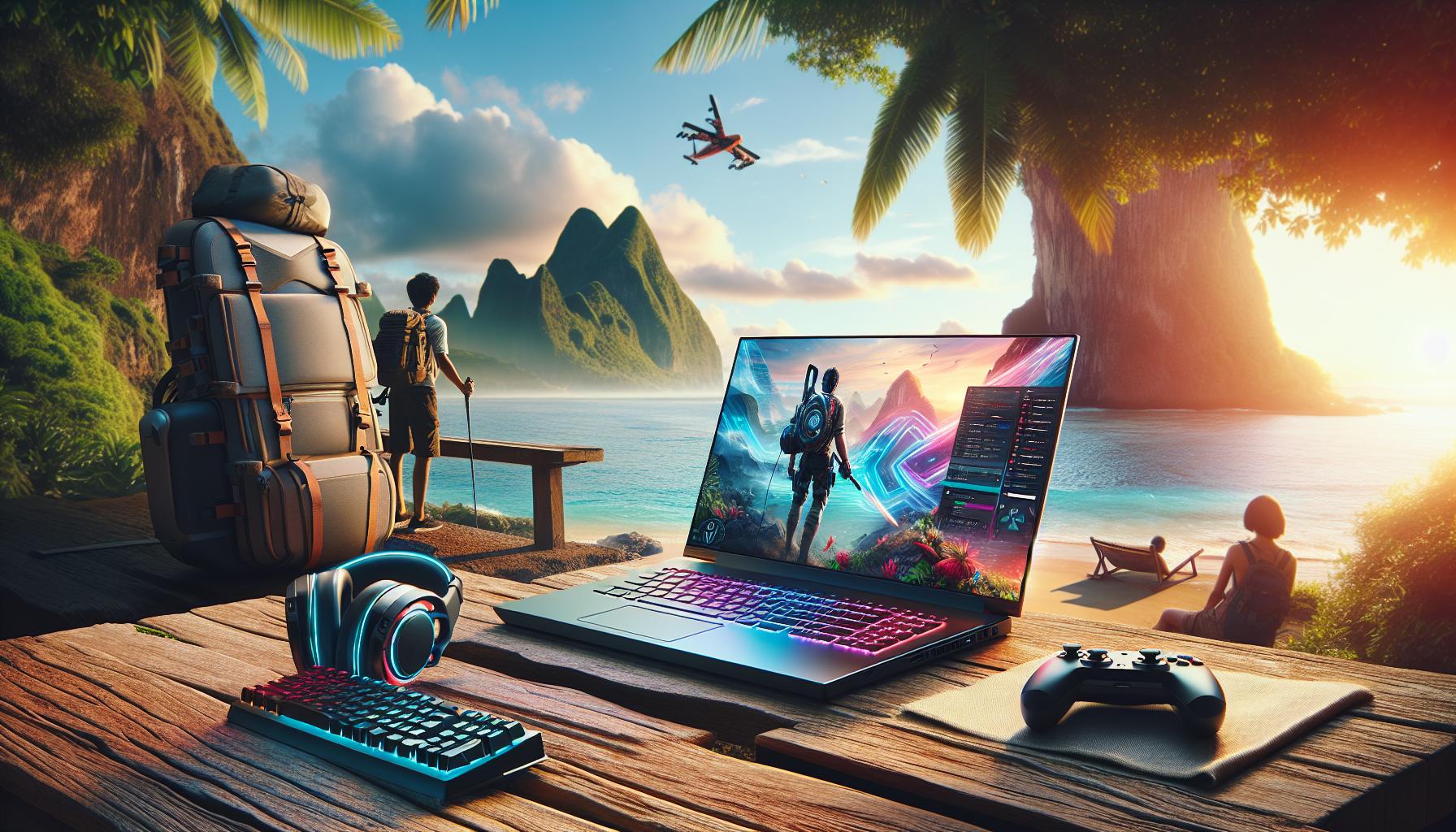
Optimizing Your Network for Seamless Remote Play
To truly enjoy the freedom of gaming on the go with PS Remote Play, ensuring a stable and high-speed network connection is paramount. A seamless connection not only enhances gameplay but also reduces lag and buffering, making your gaming experience enjoyable and immersive, regardless of your location. As digital nomads, gamers, and remote workers know, the right network can make all the difference.
Start by optimizing your home network, as this is where your console will primarily be located. Connect your PlayStation directly to the router via an Ethernet cable; this wired connection is often more stable than Wi-Fi, providing improved response times. If you must use Wi-Fi, make sure you select a 5 GHz band instead of a 2.4 GHz band if available. The 5 GHz band offers less interference and higher speeds, perfect for high-demand applications like gaming.
Key Network Settings
To further optimize your gaming setup, consider adjusting a few settings on your router:
- Quality of Service (QoS): Enable QoS settings to prioritize bandwidth for your gaming devices, ensuring smoother gameplay.
- Static IP Address: Assign a static IP to your PS console, preventing it from changing addresses and allowing for better remote access.
- Port Forwarding: Set up port forwarding for PS Remote Play to enhance connectivity; commonly used ports include 9295, 9296, and 9297.
Moreover, maintaining a minimum upload speed of 15 Mbps is crucial for a strong remote play experience. If your network speed slows down during peak hours, consider scheduling heavy downloads or updates during off-peak times, ensuring you have uninterrupted access when you’re ready to play.
Mobile Network Considerations
When gaming on the go, the quality of public Wi-Fi or your mobile data can vary drastically. If you find yourself in a café or hotel, test the network speed using an app before diving into your game. Many places offer robust connections, while others may leave you frustrated with lag. If you plan to game using mobile data, consider using a hotspot only when you have a strong signal and sufficient data allowance.
By optimizing your network settings and choosing the right locations for gaming, you can fully embrace the nomadic gamer lifestyle. Whether conquering dungeons on a rainy day in a foreign city or battling friends in a park, ensuring your network is as adventurous as you are will allow for a smooth, exhilarating remote play experience.
Exploring Controller Compatibility and Setup Options
Don’t underestimate the importance of having the right controller when diving into the world of PS Remote Play. A compatible controller not only enhances your gameplay experience but also ensures you maintain control, precision, and comfort while navigating various gaming environments-whether you’re at a local café or traveling abroad.
The PS Remote Play app offers support for various controllers, giving you options depending on the device you’re using. For mobile gamers, the DualSense™ wireless controller seamlessly connects to iOS devices with iOS 14.5 or later and Android devices, allowing for a more traditional play style. Should you opt for a smartphone or tablet, be prepared to use an on-screen controller, which, while convenient, may not provide the same tactile feedback or ergonomic comfort as a physical controller.
Controller Connection Options
To connect your DualSense controller to a mobile device, follow these steps:
- Make sure your PS Remote Play app is installed and open on your mobile device.
- Enable Bluetooth on your mobile device.
- Put the DualSense controller into pairing mode by holding the PlayStation button and the Create button simultaneously until the light bar starts flashing.
- On your mobile device, find the controller in the Bluetooth settings and select it to pair.
For those using a PC or Mac, the setup is equally straightforward. The PS Remote Play app can recognize your DualSense or DualShock 4 controllers when connected via USB or wirelessly through Bluetooth, allowing you to game without interruption.
Using Alternative Controllers
If you’re looking for unique setups or enhanced gameplay, many third-party wireless controllers offer compatibility with PS Remote Play as long as they support Bluetooth. Always check if the controller has customizable features that can enhance gameplay, such as programmable buttons or interchangeable thumbsticks, to suit your gaming style.
Incorporating the right controller into your PS Remote Play experience can profoundly impact gameplay quality. By understanding compatibility, setup options, and the advantages of various controllers, you empower yourself to take control of your gaming experience. Whether you’re gaming locally or on the go, ensuring you have the right tools at your disposal will elevate your adventure, enabling you to focus on your gameplay instead of potential setup hassles.
Troubleshooting Common PS Remote Play Issues
Experiencing hiccups while using PS Remote Play can be frustrating, especially when you’re eager to dive into your gaming sessions from anywhere. Fortunately, most common issues can be resolved with a few troubleshooting steps. Understanding these quirks not only saves time but also enhances your gaming experience as you embrace the freedom of remote play.
Connectivity issues are among the most frequent problems gamers face. If your PS Remote Play keeps disconnecting or fails to establish a connection, first check your internet connection. Both your PlayStation console and the device you’re using for Remote Play should be on a stable and strong Wi-Fi network. Ideally, a wired connection for your console and a 5GHz Wi-Fi network for your mobile device can improve stability. Sometimes, simply restarting your router can make a significant difference.
Another common issue is the app not recognizing your PlayStation console. Ensure that you’ve linked your PSN account correctly and that the console is powered on and connected to the internet. If you’re still having problems, try logging out of the app and back in, or even reinstalling it. This can clear up any bugs that may have developed in the application itself.
Lag and latency issues can also disrupt your experience. If you find that your gameplay is sluggish or unresponsive, check for any background apps or downloads that could be using bandwidth. Also, consider minimizing the distance between your device and the Wi-Fi router. When on a mobile device, turning off other connected devices in your immediate vicinity can ensure that you get the best connection possible.
Lastly, if you encounter problems with controller connectivity, such as disconnections or input delays, ensure that your controller is fully charged and connected via Bluetooth properly. Restarting both the controller and the PS Remote Play app can often resolve this. Many players opt to use a dedicated gaming hotspot or a mobile device with high-speed data to ensure a smooth connection when traveling, making the experience more reliable.
By familiarizing yourself with these common troubleshooting steps, you empower yourself to tackle issues head-on, allowing for more seamless gameplay and the full enjoyment of PS Remote Play’s capabilities. Embrace the adventure of gaming on the go, equipped with the knowledge to keep you engaged no matter where life takes you!
Enhancing Your Remote Play Experience with Accessories
Imagine sitting in a bustling café in Paris or lounging on a beach in Bali, with your favorite PlayStation games just a tap away. Enhancing your remote play experience transforms gaming from a sedentary activity into an adventure, enabling you to enjoy your titles regardless of location. Your gaming setup can significantly benefit from the right accessories, ensuring a seamless and enjoyable gaming experience while on the move.
Essential Accessories for Improved Gameplay
To maximize your PS Remote Play experience, consider investing in a few key accessories that can make a significant difference:
- High-Quality Headphones: Top-tier audio is pivotal for immersive gaming. Invest in wireless headphones with noise-cancellation features to block out external distractions, allowing you to focus on your game.
- Portable Charger: Whether you’re playing on a mobile device or a laptop, access to a portable charger can save you from power-related interruptions. Gaming can be demanding on battery life, so having a backup ensures you can play longer without worrying about finding a power source.
- Mobile Device Stand: To enhance your viewing experience, a sturdy stand holds your device at a comfortable angle while minimizing strain on your neck and arms.
- Bluetooth Controller: While the mobile interface is functional, a Bluetooth controller can enhance your gameplay precision. Look for compact controllers designed for mobile use, allowing for familiar and comfortable controls while you game.
Creating the Ultimate Gaming Environment
Your environment plays a crucial role in how you experience remote play. Consider the following tips for setting up an optimal gaming space regardless of your location:
- Choose the Right Location: Select spots with robust Wi-Fi signals to minimize lag. Restaurants or co-working spaces often have better connectivity than crowded public areas.
- Use a VPN Wisely: While a VPN can increase security, it may also affect your connection speed. Test different settings to find a balance that allows for smooth gameplay without compromising your data privacy.
- Optimize Device Settings: Ensure that your device runs in performance mode, limiting background processes that can drain resources and affect your gaming experience.
With the right accessories and an intentional setup, your gaming adventures can extend far beyond your living room. By embracing the tools and strategies that enhance your remote play experience, you cultivate the freedom to indulge in gaming wherever your travels take you. 🌍🎮
Comparing PS Remote Play to Other Streaming Services
While gaming has traditionally been a stationary experience, services like PS Remote Play have revolutionized how players engage with their favorite titles on the go. This service stands apart in a landscape dotted with various streaming options, allowing for seamless access to PS5 and PS4 games from multiple devices. Understanding the nuances of PS Remote Play compared to other services can significantly enhance your gaming adventures, especially when traveling or working remotely.
One of the key advantages of PS Remote Play is its ability to stream directly from your console, ensuring you’re playing your actual games rather than a limited selection offered by cloud gaming services. This means you have access to your entire library, and can switch from your console to a mobile device without losing your game progress. In contrast, platforms like Xbox Cloud Gaming or NVIDIA GeForce Now typically require a subscription and offer a more curated library, which may not include all your favorites.
Another notable difference lies in the gaming experience. PS Remote Play leverages your existing broadband connection to stream games, which can sometimes lead to lower latency and better graphical fidelity when compared to cloud services reliant on streaming from data centers. However, your experience will largely depend on your home network and mobile data capabilities. In locations with spotty Wi-Fi-like some cafes or public spaces-other streaming services may provide a more consistent experience, though at the expense of accessibility to your own game library.
Additionally, the controller compatibility of PS Remote Play is an advantage for those wanting to maintain familiarity with their gaming controls. It allows the use of DualShock and DualSense controllers on compatible mobile devices, enhancing the gaming experience. Many other services require reliance on touchscreen controls or alternative controllers, which may not satisfy dedicated gamers looking for precision.
Ultimately, choosing between PS Remote Play and other streaming services hinges on your gaming lifestyle. If you have a robust home internet connection and own a PlayStation console, PS Remote Play offers unrivaled access to your games wherever you are. However, for those who prioritize a curated experience and don’t own a PlayStation console, exploring options like Xbox Cloud Gaming or GeForce Now might be worthwhile. Embracing the flexibility offered by these platforms can empower you to game without boundaries, turning any location into your personal gaming haven.
Tips for Using PS Remote Play on Mobile Devices
Whether you’re lounging at a beach resort or waiting at an airport, the thrill of remote gaming is just a few taps away. To truly enjoy this freedom with PS Remote Play on your mobile device, there are several tips and tricks to ensure a seamless experience.
Optimize Your Network Connection
The foundation of a great remote gaming experience is a solid internet connection. For mobile gaming, prioritizing Wi-Fi over cellular data can lead to better performance. If you’re in a location with a strong, reliable Wi-Fi signal, connect to it to minimize latency. Additionally, consider running a speed test to ensure your upload and download speeds meet the recommended requirements-ideal speeds should be around 5 Mbps for standard play and higher for more demanding titles. If Wi-Fi is unavailable or unpredictable, look for public spaces that offer stable connections, such as cafes or libraries.
Configure Your Device Settings
Before diving into gameplay, take a moment to tweak your mobile device settings. Ensure that your phone’s battery optimization settings do not hinder app performance. You can do this by allowing PS Remote Play to run in the background and disabling power-saving modes while playing. Additionally, turning off other network-heavy apps helps reserve bandwidth for your gameplay, creating a smoother experience.
Use Compatible Controllers
Enhancing your gaming setup with a compatible controller can significantly elevate your experience. PS Remote Play supports various controllers, including the DualShock and DualSense controllers. Using a physical controller over on-screen controls improves accuracy, especially in fast-paced games. To connect your controller, simply pair it via Bluetooth in your device’s settings, making sure to follow any specific instructions for your controller model.
Download the Latest Updates
Always keep the PS Remote Play app updated to benefit from the latest features and performance enhancements. Updates often include optimizations that improve connectivity and overall functionality. Moreover, ensure that your console’s firmware is also current, allowing for seamless communication between devices.
Incorporating these strategies will not only enhance your gaming experience but also empower you to game anywhere. So pack your device, find a cozy corner, and get ready for adventure-your favorite PS4 and PS5 titles are just a swipe away!
Advanced Features and Options in PS Remote Play
With the gaming world continuously evolving, PS Remote Play stands out as a groundbreaking feature that allows you to carry your PlayStation experience with you-wherever you may be. Beyond just the basics of remote streaming, this tool offers a plethora of advanced features and options that can significantly enhance your gaming experience. Understanding these options can empower you to make the most of your PlayStation games, whether you’re traveling, taking a break at a café, or simply residing far from your console.
One of the most noteworthy advanced features of PS Remote Play is multi-device support. You can start a game on your PlayStation 5 at home, pause it, and seamlessly continue playing on your mobile device, tablet, or even a computer when you’re away. This cross-platform capability allows you to balance your gaming schedule with your lifestyle, offering flexibility that has never been possible before. Additionally, the app’s intuitive interface lets you switch between devices effortlessly, allowing for a fluid gaming experience.
Furthermore, the customization options available within PS Remote Play can help tailor your experience to suit your preferences. You can optimize your streaming quality based on your current network conditions, choosing between performance or resolution modes. In environments with poor connectivity, switching to a lower resolution can provide smoother gameplay, while a stable connection allows you to enjoy high-definition visuals without interruptions. There are also options for adjusting the controller settings, allowing you to modify button mappings to better match your gaming style.
Incorporating accessories can also elevate your gameplay. For instance, using a compatible controller rather than on-screen touch controls can lead to better precision and comfort during extended gaming sessions. Setting up a DualSense or DualShock controller is straightforward: simply pair it with your mobile device via Bluetooth, and you’re good to go. This not only enhances your control but also replicates the console experience more accurately on the go.
Lastly, the integration of social features within PS Remote Play encourages collaborative play. You can easily invite friends to join your gaming session, share your experiences, or challenge each other even from different locations. This interconnectedness fosters a sense of community while enjoying your favorite titles, making gaming an even more enriching experience.
By understanding and leveraging these advanced features, you can unlock the true potential of PS Remote Play and enjoy your gaming in a way that fits your adventurous lifestyle. Embrace the freedom it provides, and game anywhere with confidence!
Maximizing Gameplay with PS Remote Play Strategies
With the freedom afforded by PS Remote Play, gamers can take their adventures beyond the living room, but to truly maximize this experience, it’s vital to employ effective strategies. The key is to embrace the tools and features that enhance your gameplay, whether you’re lounging at a coffee shop or on a park bench during your travels.
Optimize Your Network Settings
The heart of a successful remote gaming experience lies in a solid internet connection. Aim for a stable and fast Wi-Fi network. If available, connect to a 5GHz Wi-Fi band to reduce interference and latency. If you’re on the go and can’t find reliable Wi-Fi, consider using mobile data with a solid 4G or 5G connection. Testing your network speed before gaming sessions can help you determine the best scenario for quality gameplay. Utilize apps like Speedtest to check your connection and ensure you meet the recommended download speeds of at least 5 Mbps.
Customize Your Streaming Quality
Understanding the quality settings in PS Remote Play is crucial for seamless gameplay based on current network conditions. In areas with strong connectivity, opt for higher resolution settings to enjoy stunning graphics; however, in less reliable environments, prioritize performance by lowering the resolution. This adaptability can significantly enhance your gaming experience, providing smoother gameplay and reducing frustrating lag. Access the Remote Play settings on your device and select the appropriate configuration based on your location.
Leverage Cross-Platform Play
One unique advantage of PS Remote Play is its ability to sync across multiple platforms. Start a game on your PlayStation console and easily transition to a mobile device. This means you can engage in gaming sessions whenever it’s convenient-whether you have a few minutes during your commute or a few hours in a hotel. Familiarize yourself with how to pause and resume your games across devices for optimal flexibility, ensuring that no playtime goes wasted.
Engage with the Community
Social features within PS Remote Play enhance the experience by allowing gamers to invite friends to join them, co-stream sessions, or share their achievements. Participate in online communities or forums focused on PS Remote Play to exchange tips, tricks, and strategies. This engagement can not only improve your gameplay but also foster a sense of camaraderie, even if you’re miles away from your gaming friends.
By understanding these strategies and seamlessly integrating them into your PS Remote Play experience, you can ensure that your gaming remains uninterrupted and enjoyable, no matter where your adventures take you. Embrace the freedom to explore new locations while still connecting with your favorite games and communities!
Faq
Q: What devices are compatible with PS Remote Play?
A: PS Remote Play is compatible with PlayStation 5, PlayStation 4 consoles, Windows PC, Mac, iOS devices (iPhone and iPad), and Android devices. Ensure your devices meet the app’s specifications for smooth gameplay and optimal performance.
Q: How can I improve lag during PS Remote Play sessions?
A: To reduce lag, use a wired internet connection for your console, minimize other connected devices using bandwidth, and position your Wi-Fi router closer to your gaming setup. You can also check for any network congestion during gameplay by performing a speed test.
Q: Can I use my smartphone as a controller for PS Remote Play?
A: Yes, you can use your smartphone as a controller through the PS Remote Play app. Simply download the app and connect your DualSense or DualShock controller using Bluetooth for enhanced gameplay. For more details, check the “Exploring Controller Compatibility and Setup Options” section of your guide.
Q: Does PS Remote Play require a PlayStation Plus subscription?
A: No, a PlayStation Plus subscription is not required to use PS Remote Play. However, a stable internet connection is essential, and PlayStation Plus may offer additional online benefits for multiplayer gaming.
Q: Can I play PS5 games remotely using PS Remote Play?
A: Yes, you can play PS5 games remotely using PS Remote Play. Ensure your PS5 is set up correctly for remote play by enabling the feature in the console settings, as outlined in your “Step-by-Step Guide to Configure Your Gaming Setup.”
Q: What are the limitations of using PS Remote Play?
A: Limitations include potential latency issues, limited battery life when using mobile devices, and a dependency on a stable internet connection. Additionally, some games may restrict remote play functionality due to licensing.
Q: Is PS Remote Play safe to use?
A: Yes, PS Remote Play is designed with security in mind. Always ensure you use secure networks and update your console and app for the latest security features. For a deeper understanding of safety, refer to your guide’s section on troubleshooting common issues.
Q: How do I switch from mobile to PC while using PS Remote Play?
A: To switch from mobile to PC, simply log out of the PS Remote Play app on your mobile device, then open the app on your PC and connect using your PlayStation Network account. Your gameplay session will not be saved across devices, so make sure to pause or end the game first.
In Retrospect
As you dive into the world of PS Remote Play, remember that unlocking the full potential of your gaming setup not only enhances your experience but also allows you to game on your own terms, anywhere you go. If you want to learn more about optimizing your PlayStation settings or explore game suggestions for the ideal Remote Play experience, check out our guides on Tips for Boosting Your Internet Speed and Best Games for Remote Play.
Don’t let the opportunity to elevate your gaming slip away-get started with PS Remote Play today! Have questions or tips of your own? Share them in the comments below, and join our community of gamers who are ready to take their skills and experiences to the next level. Remember, your gaming adventure is just beginning, and there’s so much more to discover!